Before You Connect ChatGPT to Work Apps, Clean the Context First
A practical checklist for reviewing prompts, files, chat history, and permissions before connecting ChatGPT, Claude, or another AI client to work apps through MCP or custom connectors.
May 8, 2026
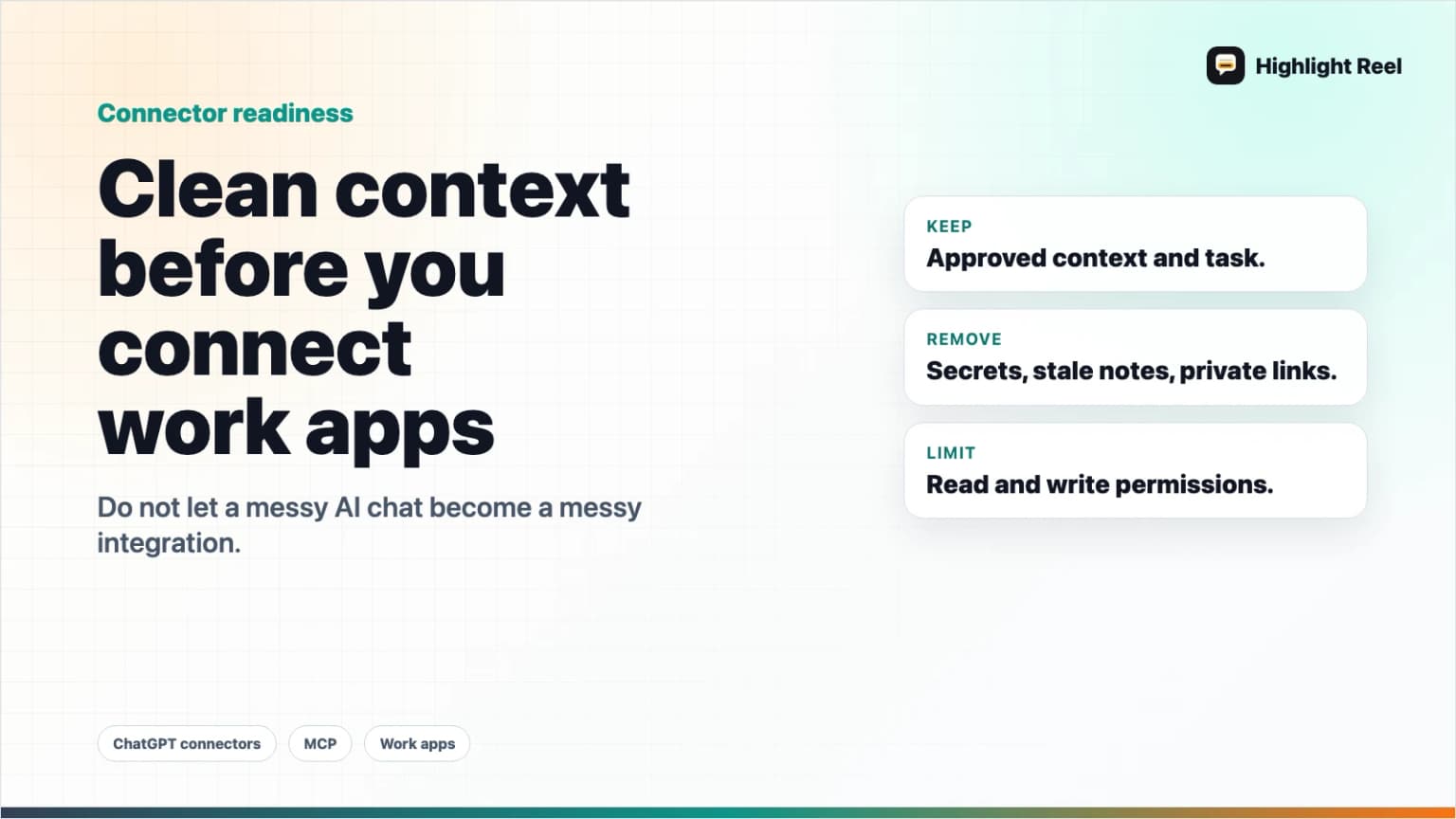
Connecting ChatGPT, Claude, or another AI client to work apps can be useful. It can also turn a messy chat into a messy integration.
Highlight Reel
Turn useful AI context into a clean handoff
Save the parts of an AI conversation worth reusing, remove private context, and share a clean link instead of a raw thread.
Before you connect an AI tool to Slack, Notion, Google Drive, Meta Ads, a database, or an internal app, clean the context first. The safest default is not "connect everything and ask better prompts." It is "decide what the AI should see, what it can change, and what the next person needs from the result."
Quick Answer
Before connecting ChatGPT to work apps, review three things:
- The data context: what files, chats, notes, and customer details the AI can read.
- The action context: whether the connector can only search, or can also create, update, delete, spend, publish, or send.
- The handoff context: what useful answer, decision, source, or next action should be saved after the AI finishes.
Use this rule:
Connect less context than you have.
Grant fewer actions than the connector supports.
Save the useful result outside the raw chat.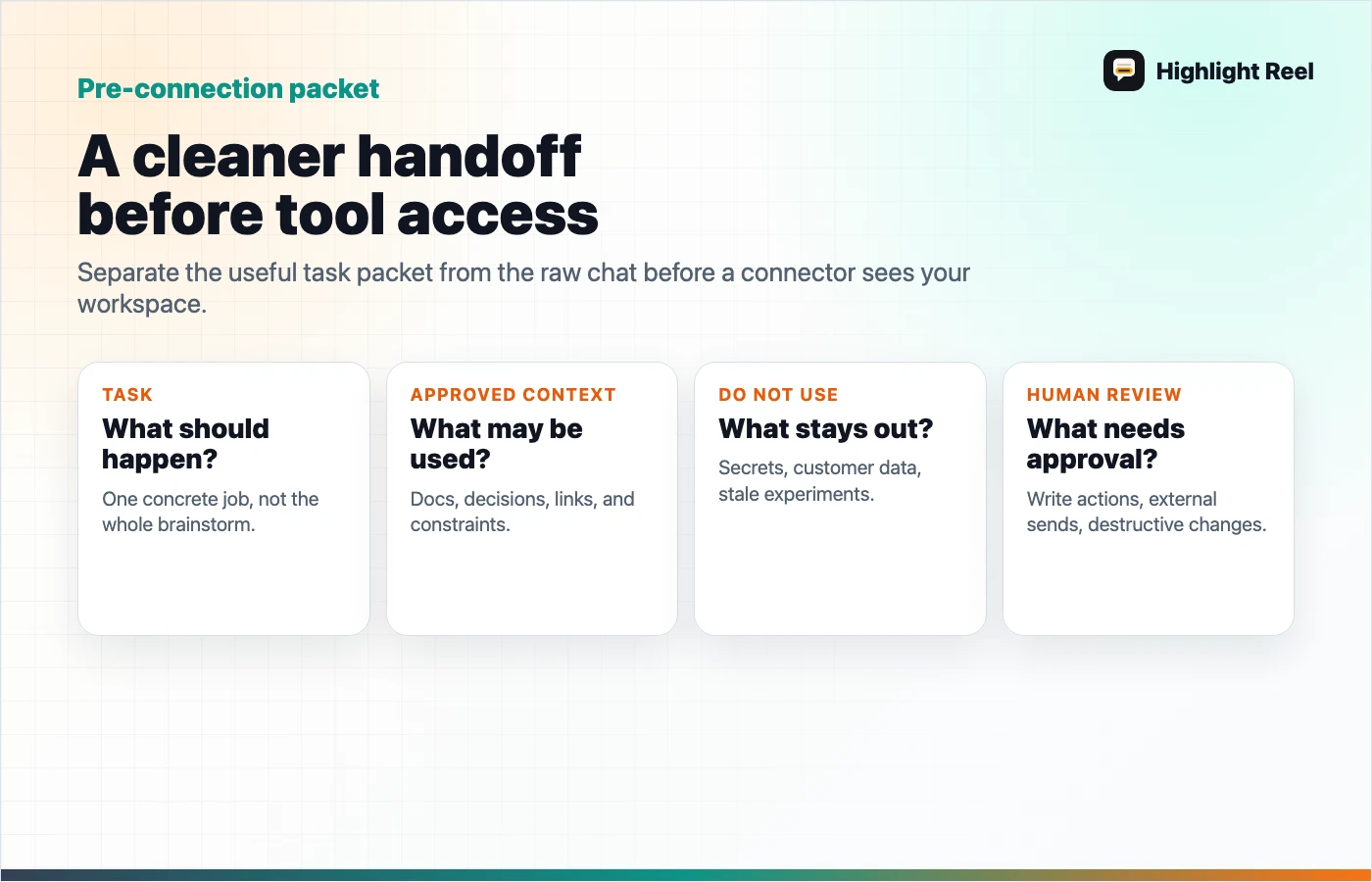
Why This Matters Now
AI tools are moving from chat boxes into work systems. OpenAI's developer mode documentation describes full MCP client support for tools, including read and write actions in supported contexts. Claude's custom connector guidance explains how Claude can connect to remote MCP servers from Anthropic's cloud infrastructure. MCP itself is a standard for connecting AI applications to external systems.
That shift is powerful because AI can stop being isolated from the work. It is risky for the same reason.
A normal chat mistake is usually text you can ignore. A connected-app mistake can touch a file, a ticket, an ad account, a database, or a customer-facing workflow.
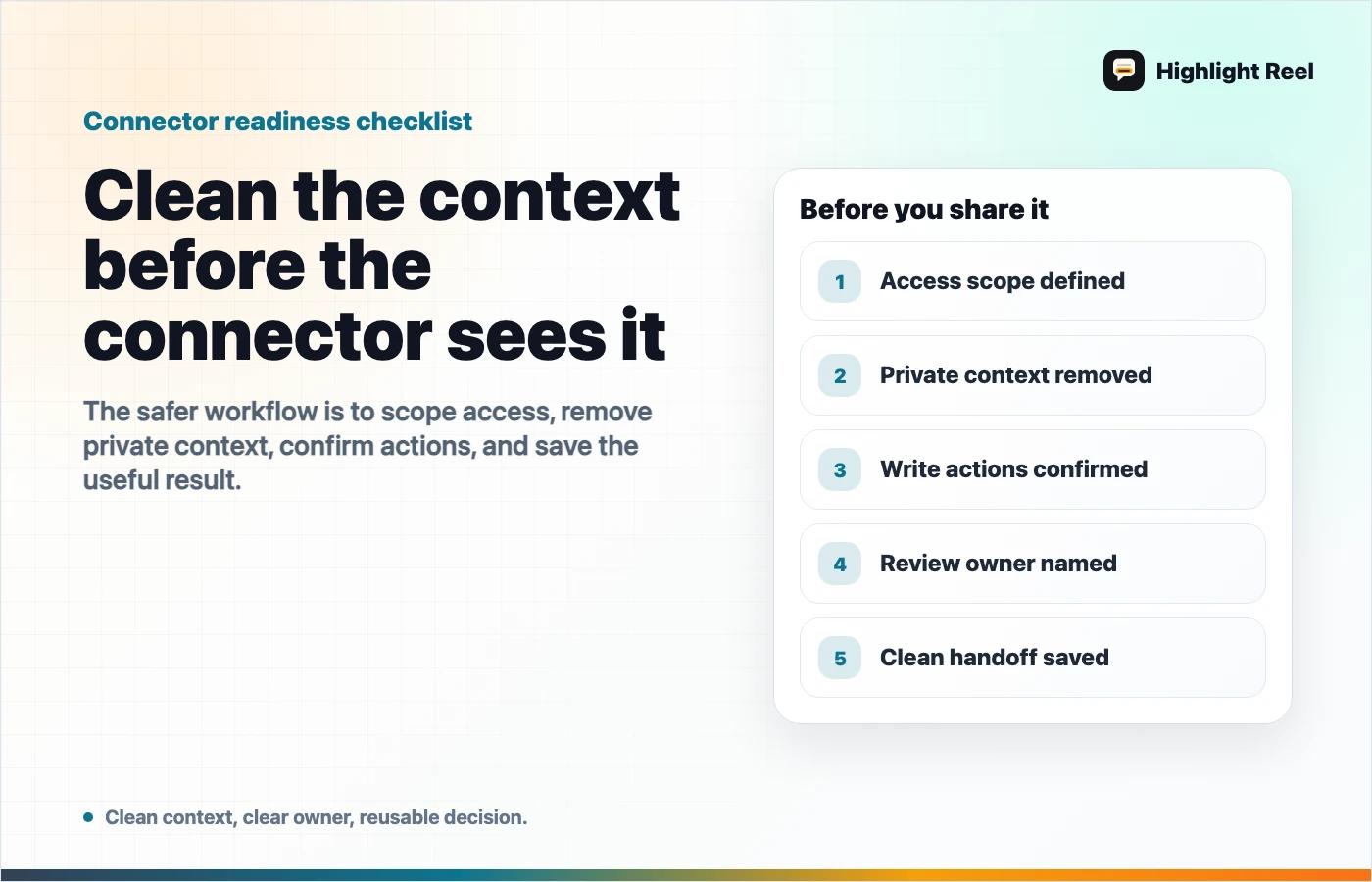
The answer is not to avoid connectors forever. The answer is to treat connected AI work like any other integration: scope the access, clean the input, review the output, and keep an audit-friendly handoff.
The Pre-Connection Checklist
Run this before adding a new MCP connector, ChatGPT app, Claude connector, or AI work-app integration.
| Check | Ask this | Safer default |
|---|---|---|
| Source | What data can the AI search or fetch? | Start with one project, folder, notebook, or dataset. |
| Identity | Whose account is authorizing the connector? | Use a work account with clear revocation and admin visibility. |
| Permissions | Can it write, delete, publish, spend, or send? | Start read-only unless the workflow truly needs write access. |
| Sensitive context | Could prompts, customer data, tokens, private links, or internal strategy appear? | Remove or summarize sensitive context before connecting. |
| Confirmation | Will write actions require review? | Require confirmation and inspect payloads before execution. |
| Output | Where will the useful decision live after the chat ends? | Save a clean handoff, not just the conversation. |
If you cannot answer one of these, pause the connector rollout. That pause is cheaper than cleaning up an accidental permission mistake later.
Clean The Context Before You Connect
Most teams think about connector safety only as a permission problem. Permissions matter, but the input context matters too.
An AI client may only be allowed to read a document, but if that document contains a private customer email, a secret launch plan, or a pasted access token, you still have a context problem.
Use this four-step cleanup:
1. Separate the useful work from the raw chat
Raw AI conversations contain retries, false starts, private constraints, copied files, and sometimes half-formed thoughts. The useful part is usually smaller:
- the final answer
- the source list
- the decision
- the reason for the decision
- the next action
- the caveat someone else needs to know
Save that useful layer separately before connecting it to anything else.
2. Remove private or irrelevant details
Do not connect context just because it was in the original conversation.
Remove or rewrite:
- customer names and emails
- private URLs
- access tokens and API keys
- internal pricing or roadmap details that are not needed
- prompts that reveal private strategy
- unrelated chat turns
- personal notes that do not change the answer
The goal is not to make the context vague. It is to make it useful without dragging unnecessary exposure along with it.
3. Label what the AI is allowed to do with it
A clean handoff should say what the connected AI can use the context for.
For example:
Use this context to draft a customer-facing help article.
Do not use it to update the live docs.
Do not mention internal rollout dates.
Keep the known limitation in the final note.
This is especially important when the connected AI can write or modify records.
4. Save the result as a handoff
After the AI finishes, save the useful result somewhere more durable than the chat thread.
That handoff should include:
- what was asked
- what source context was used
- what the AI suggested
- what a human accepted or changed
- what should happen next
This is where Highlight Reel fits naturally. You can turn the useful AI turns into a readable page, remove the noise, and share the result as a clean link or reusable context packet.
Read Access And Write Access Are Not The Same Risk
Do not treat every connector as one category.
| Connector capability | Example task | Risk level | Review habit |
|---|---|---|---|
| Search | Find relevant project notes | Lower | Check whether search spans the right scope. |
| Fetch | Open a specific file or transcript | Medium | Check whether the fetched item contains private context. |
| Draft | Generate a proposed message or ticket | Medium | Review before copying or sending. |
| Create | Create a doc, task, or page | Higher | Confirm destination, title, body, and visibility. |
| Modify | Edit a campaign, record, or live page | Higher | Require a diff or explicit change summary. |
| Spend / publish / send | Launch ads, publish content, email users | Highest | Keep human approval and an audit trail. |
The first safe rollout for a new connector is usually search and fetch. Add write actions only after the team understands what the AI sees, what it can change, and how to reverse a mistake.
A Clean Context Template
Use this before asking an AI client to work with connected apps.
# Clean AI Context Brief

## Task
What should the AI help with?

## Approved Context
- Source 1:
- Source 2:
- Saved AI conversation:

## Do Not Use
- Private customer details:
- Internal-only strategy:
- Drafts or files that are out of date:

## Allowed Actions
- Search:
- Fetch:
- Draft:
- Create:
- Modify:

## Human Review Required
- Anything customer-facing
- Any write action
- Any budget, publish, or send action

## Handoff Output
- Decision:
- Source:
- Caveat:
- Next action:
The template forces the key question: are you giving the AI the right job, or just giving it access and hoping the chat history explains itself?
Where Highlight Reel Fits
Highlight Reel is useful before and after a connector.
Before connecting, use it to turn a messy AI conversation into a clean, shareable context page:
- selected turns only
- readable transcript
- removed private context
- preserved source links and decisions
- clear next action
After the AI uses a connector, use it to save the accepted result:
- what the AI changed or recommended
- what a human reviewed
- what should be reused next time
That gives your next AI session or teammate a useful artifact, not a raw transcript that takes ten minutes to decode.
FAQ
Is connecting ChatGPT to work apps unsafe?
Not automatically. The risk depends on the connector, the data scope, the permissions, the AI client's confirmation behavior, and how carefully the team reviews outputs. Start narrow and expand only after the workflow is understood.
Should I start with read-only access?
Usually, yes. Search and fetch workflows are easier to review than write workflows. If you later add write actions, require explicit confirmation and keep a change log.
Is MCP only for developers?
No. Developers often build or configure MCP servers, but the user problem is ordinary: letting AI tools access approved context and tools without copy-pasting everything into every chat.
What should I save after a connected AI session?
Save the decision, sources, accepted output, rejected output, and next action. If the chat included sensitive context, save a cleaned version instead of the raw thread.