How to Share Claude Chats With Coworkers Without Sending the Whole Thread
A practical guide to sharing selected Claude chat turns with coworkers while avoiding oversized threads, accidental oversharing, and screenshot cleanup.
May 2, 2026
You can share a Claude chat with coworkers by creating a Claude shared chat link, but that link is a snapshot of the conversation, not a curated handoff. For most work situations, the safer and more useful approach is to keep only the turns your coworker needs, redact private details, and share those selected turns as a clean page.
Highlight Reel
Share the useful part of a Claude chat
Select the turns your coworker actually needs, remove private details, and send a clean Highlight Reel page instead of a whole thread.
That gives your coworker the decision, context, code, or explanation without asking them to read the whole thread.
Quick Answer
If you want to share a Claude chat quickly, use Claude's built-in Share button. According to Claude's help center, a shared chat creates a link to a snapshot of messages sent before sharing. Anyone who can access that link can view the snapshot, and messages added after sharing stay private by default unless you unshare and share again.
Use a curated Highlight Reel page when:
- The original thread is long
- The useful answer depends on a few scattered turns
- You need to remove private company, customer, or project details
- Your coworker needs copyable code, tables, sources, or next steps
- You want a cleaner artifact for Slack, Notion, Linear, GitHub, email, or a doc
Default rule: use Claude's shared chat link for a quick platform-native snapshot; use Highlight Reel when you want to send the useful part without sending the whole thread.
What Claude Shared Chats Include
Claude's official sharing guidance describes shared chats as snapshots. When you share a chat, the shared snapshot includes messages sent before the share action. New messages after that point remain private by default. You can also change the chat from public to private to disable the direct link, and Claude provides a Shared chats management view under privacy settings for free, Pro, and Max users.
Claude also notes two important details for chats with files or MCP integrations:
- Attached files themselves are not included in the shared snapshot.
- Raw data retrieved from MCP tool calls remains hidden; viewers see the final chat output and conversation, not the underlying tool call data.
That is useful, but it does not make every shared chat a good coworker handoff. The link may still contain more conversation than your teammate needs, including false starts, internal reasoning context, partial prompts, or details that were fine inside your workspace but not necessary for the reader.
Shared Link vs Export vs Clean Share Page
Claude gives you more than one way to move conversation data around. They solve different jobs.
| Method | Best for | Not ideal when |
|---|---|---|
| Claude shared chat | Fast sharing of a platform-native snapshot | The thread is long, noisy, or contains details the coworker does not need |
| Claude data export | Account-level backup or personal recordkeeping | You need a readable page for one coworker or one project decision |
| Screenshot | A short visual moment | The reader needs searchable text, code, links, tables, or context |
| Clean Highlight Reel page | Selected useful turns as a readable handoff | You need to preserve the entire original Claude thread exactly as-is |
Claude data export is a different workflow from coworker sharing. Claude's export guidance says individual users can export account information and chat history from Settings > Privacy on the web app or Claude Desktop, then receive a download link by email. That is useful for ownership and backup, but it is too broad for sending one decision or answer to a teammate.
The Pre-Share Checklist
Before you send a Claude chat to a coworker, check the artifact like you would check a document, ticket, or design review.
| Check | Ask this before sharing |
|---|---|
| Reader task | What should the coworker understand or do after reading? |
| Necessary context | Did you keep the prompt, constraints, and correction that make the answer make sense? |
| Sensitive details | Did you remove customer names, internal URLs, API keys, private file paths, and unreleased plans? |
| Thread length | Can the coworker understand it in under two minutes? |
| Format | Are code blocks, tables, sources, and bullets still copyable? |
| Access | Is the link appropriate for the audience and channel? |
If the answer to any row is unclear, do one more cleanup pass before sending the link.
How to Share Selected Claude Turns With Coworkers
Use this workflow when the Claude conversation produced something useful, but the raw thread is too much.
1. Name the coworker's job
Start with the reader, not the tool.
Examples:
- "Review the recommendation before the product meeting."
- "Copy the implementation checklist into the issue."
- "Understand why we chose option B."
- "Reuse this prompt pattern for the next customer research pass."
That job decides what stays in the shared artifact.
2. Keep the minimum useful path
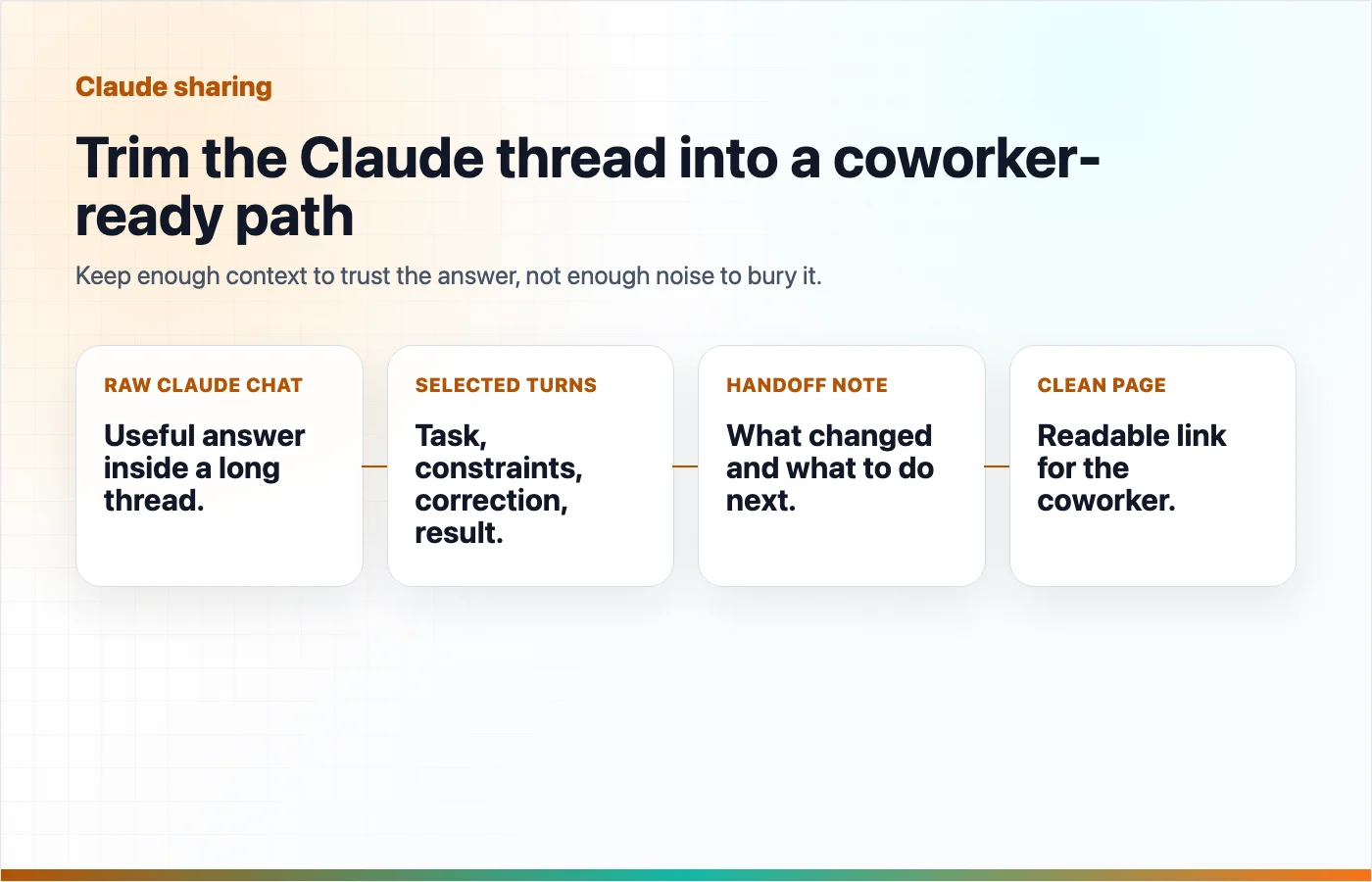
Most long Claude chats contain more process than your coworker needs. Keep the short path from question to useful result.
A good handoff usually includes:
- The original task or question
- The key constraints
- One important correction or clarification
- The final answer, table, code, or checklist
- Any source links needed to trust the answer
Remove:
- Repeated attempts that did not change the outcome
- Side branches
- Personal notes
- Tool chatter
- Any private detail the coworker does not need
3. Add a one-paragraph handoff note
Do not make the reader infer why the chat matters. Add a short note at the top.
This is the cleaned Claude conversation behind the support workflow decision.
The important part is the tradeoff table and the final checklist.
I removed customer-specific details before sharing.
That note turns a transcript into a useful work artifact.
4. Preserve structure as real text
If the conversation contains code, tables, links, or a multi-step plan, keep them as text. A coworker should be able to copy a command, search for a term, quote a line, or paste a checklist into a ticket.
This is where screenshots usually fail. They show that an answer exists, but they make the answer harder to use.
5. Share the cleaned page
In Highlight Reel, select the useful Claude turns, clean up the title and surrounding context, and share a readable page. The goal is not to hide that the work came from Claude. The goal is to make the useful part legible for another person.
Useful share titles are specific:
- "Claude analysis: onboarding email edge cases"
- "Claude checklist for the billing bug fix"
- "Claude comparison: shared link vs transcript export"
Weak titles are vague:
- "Claude chat"
- "AI answer"
- "Stuff from earlier"
A Copy-Paste Template
Use this template at the top of a cleaned Claude handoff.
# <Decision, answer, or task name>

Why I am sharing this:
<One sentence about what the coworker should get from it.>

What I kept:
- Original task:
- Key constraints:
- Final recommendation:
- Follow-up actions:

What I removed:
- Private details:
- Irrelevant branches:
- Draft attempts:

Next step:
<What the reader should do after opening this page.>
When the Whole Claude Thread Is Still Better
Sometimes a full Claude shared chat is exactly what you want.
Use the whole thread when:
- The coworker needs to audit the complete conversation
- The sequence of prompts is the thing being reviewed
- The thread is short and clean
- You want the platform-native Claude snapshot
- You are sharing within the access model your organization expects
The problem is not that full threads are bad. The problem is that full threads are often too much for the job.
Privacy Notes for Work Chats
Treat AI chat links like work documents. Even if a native tool has reasonable privacy controls, you are still responsible for what you choose to share.
Before sharing, avoid including:
- API keys, tokens, credentials, or secrets
- Customer data or private account details
- Internal file paths or private repository URLs
- Unannounced company plans
- HR, legal, finance, medical, or security-sensitive information
- Long excerpts copied from private documents that the reader should not access
When in doubt, send a cleaner artifact with fewer details.
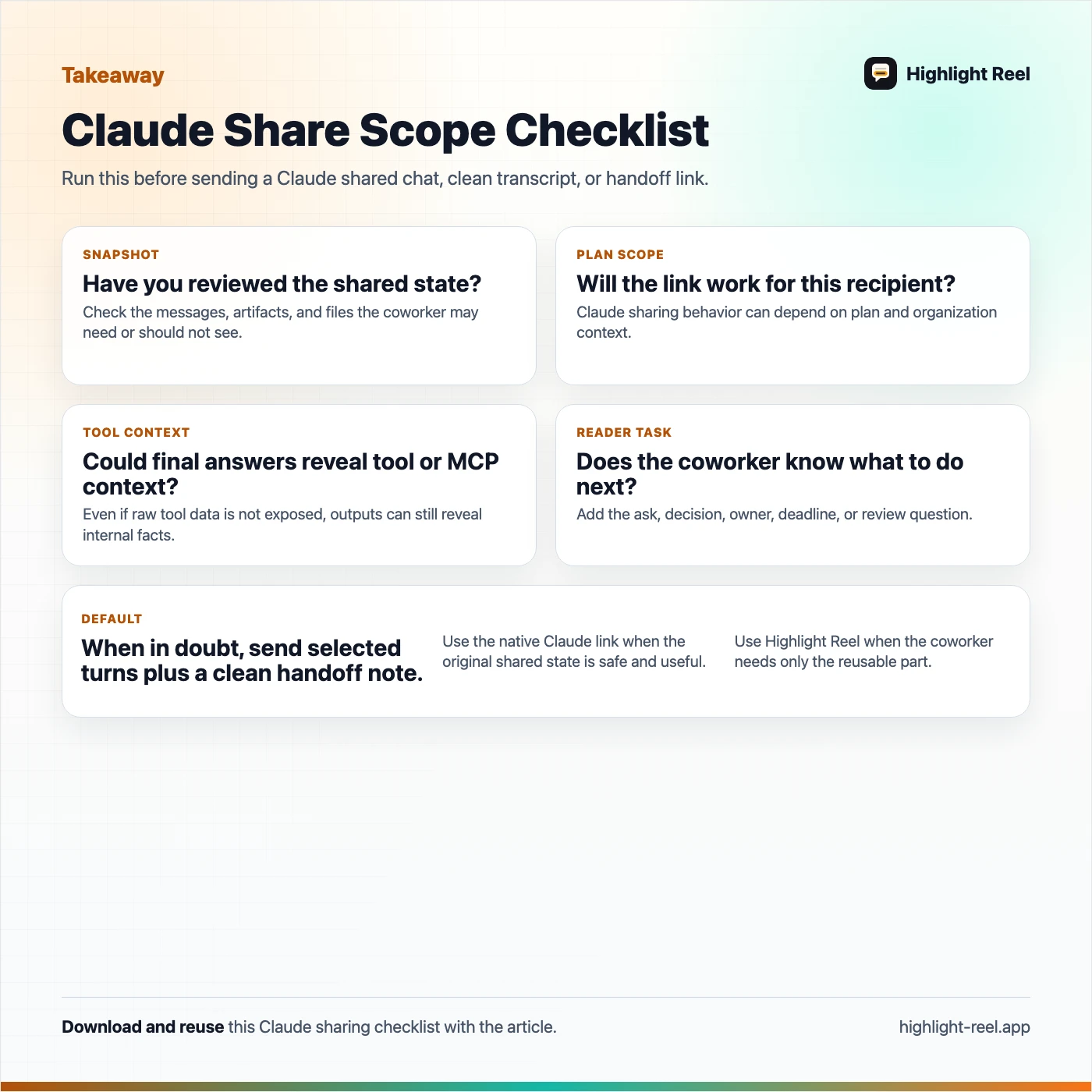
Download the Claude share scope checklist
FAQ
Can anyone with a Claude shared chat link view it?
Claude's help center says that once a chat is shared, anyone with the link can view the chat snapshot. Team and Enterprise sharing has organization-specific limits, so check your workspace policy before treating a link as public or internal.
Can I unshare a Claude chat later?
Yes. Claude's sharing guidance says you can change the chat from public to private to disable the direct link, and free, Pro, and Max users can manage shared chats from privacy settings.
Are uploaded files included when I share a Claude chat?
Claude says attached files themselves are not included in the shared snapshot. The visible conversation and Claude responses are shared, so you should still check whether the text of the chat mentions private file contents.
Is Claude data export a good way to share one chat with a coworker?
Usually no. Data export is meant for account-level data access and includes conversation data and account information. For one coworker handoff, a cleaned share page is lighter and easier to read.
What is the safest way to share a useful Claude answer with a team?
Keep the original task, the constraints, the useful answer, and the next step. Remove everything else. Then share those selected turns as a readable page with access appropriate to the audience.
The Practical Rule
Claude shared chats are useful when you want a quick snapshot. Highlight Reel is useful when you want a coworker to understand the selected part that matters.
If the conversation became a decision, checklist, explanation, code review, or reusable prompt, do not send the whole thread by default. Turn the useful turns into a clean share page and let the reader get to the point.